
This guide explains how partner operators can upload customer documents through the Anytime Mailbox Partner Portal for:
General customer files
New applications
Reverification (USPS Compliance & Forwarding Address)
Additional authorized recipients
Following these steps ensures documents are uploaded accurately and processed without delays.
Access the Customer Profile
Log in to your Partner Portal.
From the main dashboard, click on Customers.
From the left-hand menu under Customers, choose the appropriate section based on the type of upload:
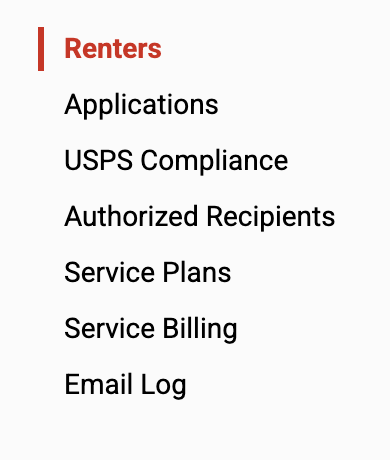
Renters → General files
Applications → New applications
USPS Compliance → Reverification / Forwarding Address
Authorized Recipients → Additional authorized recipients
Upload General Files (Renters Section)
Steps:
Click Customers → Renters.
Use the search bar to find the customer’s name.
Click the customer’s name from the results.
Go to the Files subtab.
Click the blue “Upload Files” button.
Select the file(s) you want to upload.
A pop-up window will show the upload progress.
Once complete, a green circle with a checkmark will appear.
Click Done.
The file will now appear under the customer’s profile.
Upload Documents for New Applications
Steps:
Click Customers → Applications.
Search for the customer’s name. You can apply filters to narrow the results, such as showing only customers who signed up directly on your website or those who registered through Anytime Mailbox. To filter new applications, select New on second filter option.

Click the customer’s record.
Scroll down to the Files section.
Click Upload.
In the pop-up window:
Select the file type.
Provide any required details.
Example: For IDs, select the ID type and upload front and back images.
Upload the file(s).
Wait for the green checkmark indicating success.
The document will appear in the customer’s application profile. You can follow this guide on how to approve the customer’s application.
Upload Documents for Reverification (USPS Compliance / Forwarding Address)
Steps:
Click Customers → USPS Compliance.
Search for the customer’s name.
Click the customer’s record.
Scroll to the Files section.
Click Upload.
Select the appropriate file type and upload the document(s).
Wait for the green checkmark confirmation.
Files will be saved under the customer’s compliance/reverification profile. You can click this guide for more information on how to review and approve the reverification documents.
Upload Documents for Authorized Recipients
Steps:
Click Customers → Authorized Recipients.
Search for the customer’s name.
Click the customer’s record.
Go to the Files subtab.
Click the blue “Upload” button.
Select the file(s) to upload.
Monitor the upload progress in the pop-up window.
Once complete, confirm the green checkmark appears.
Click Done.
The document is now uploaded to the authorized recipient’s profile. To review and approve the authorized recipient added by the customer, you can follow this guide.