
If you need assistance downloading the USPS 1583 form for a customer who comes to the store to complete their sign up and verification, you may download a blank USPS 1583 form from the website.
If the customer has already signed up online for their virtual mailbox and visits the store for in-person verification, requiring you to download their pre-filled USPS 1583 form, you can do so by following these steps:
Step 1: Log in to your portal. Navigate to the Customers tab, and select Service Plans from the menu on the left to view the various service plans you offer.
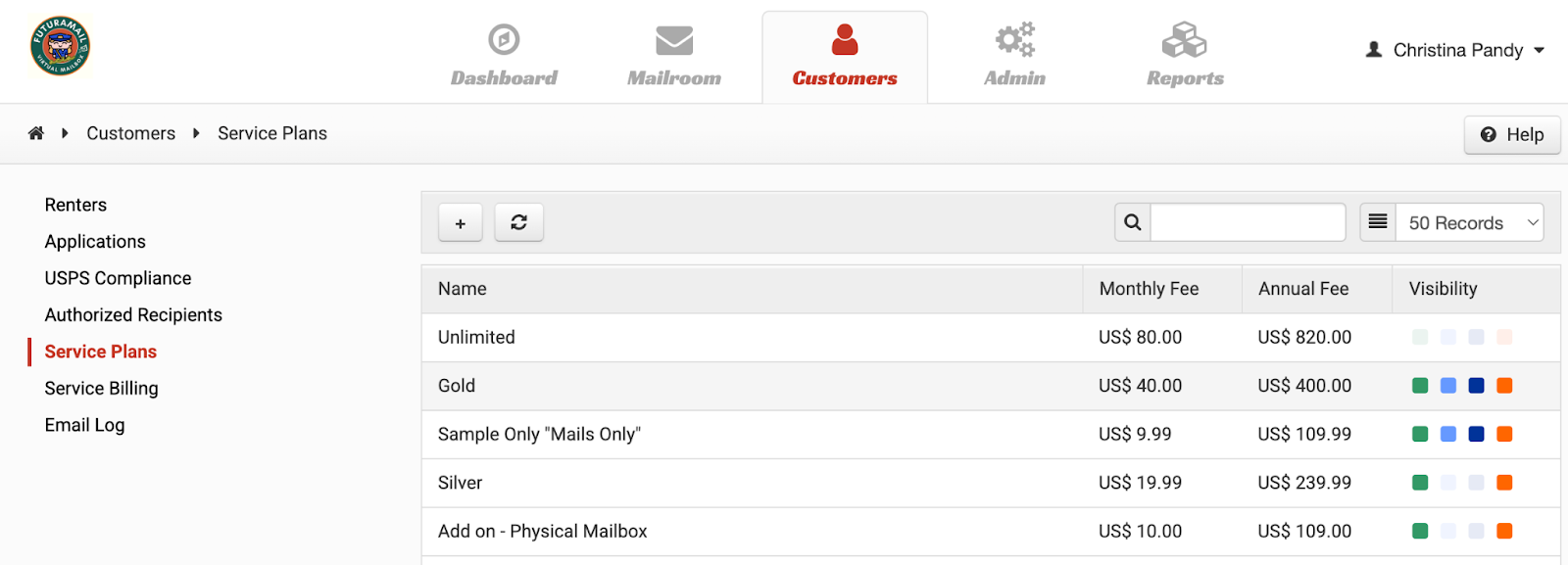
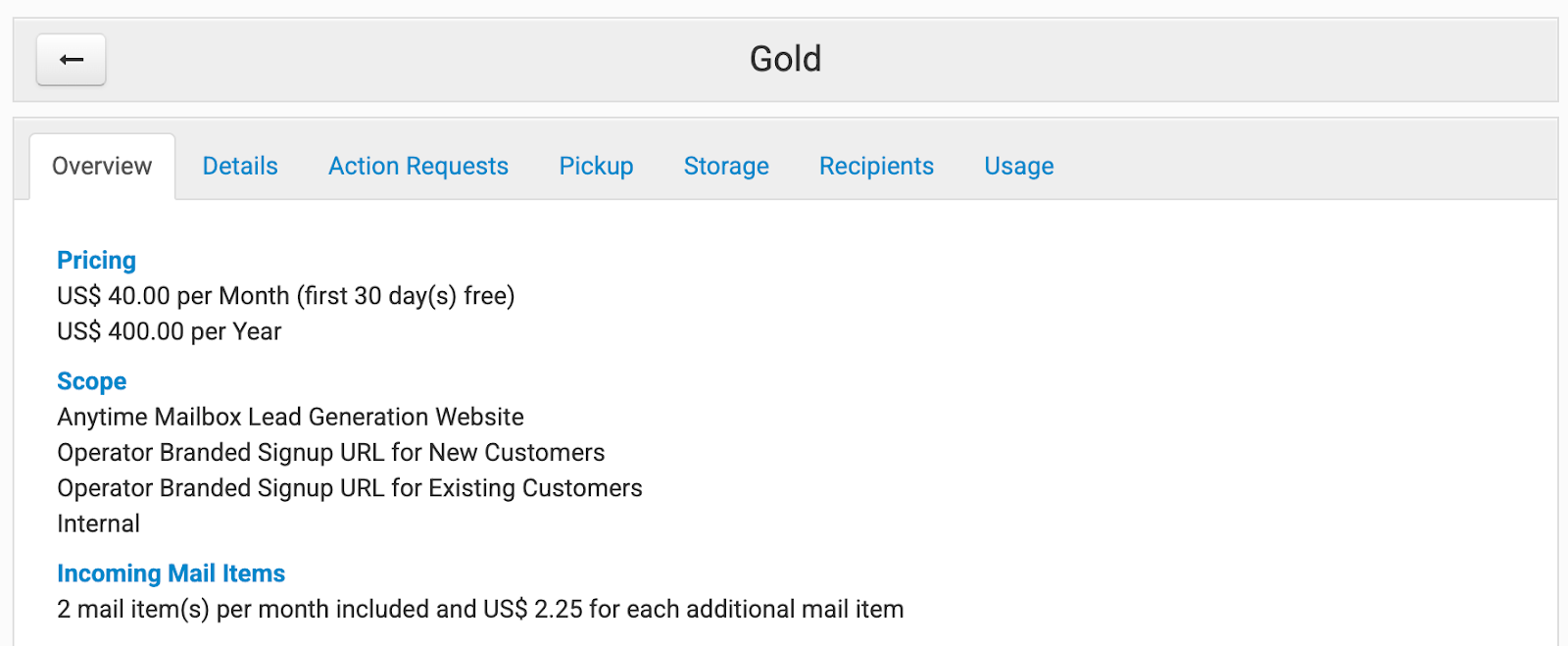
Step 2: Ask the customer which plan they signed up for, then locate and click on the corresponding plan name from the list to view its details.
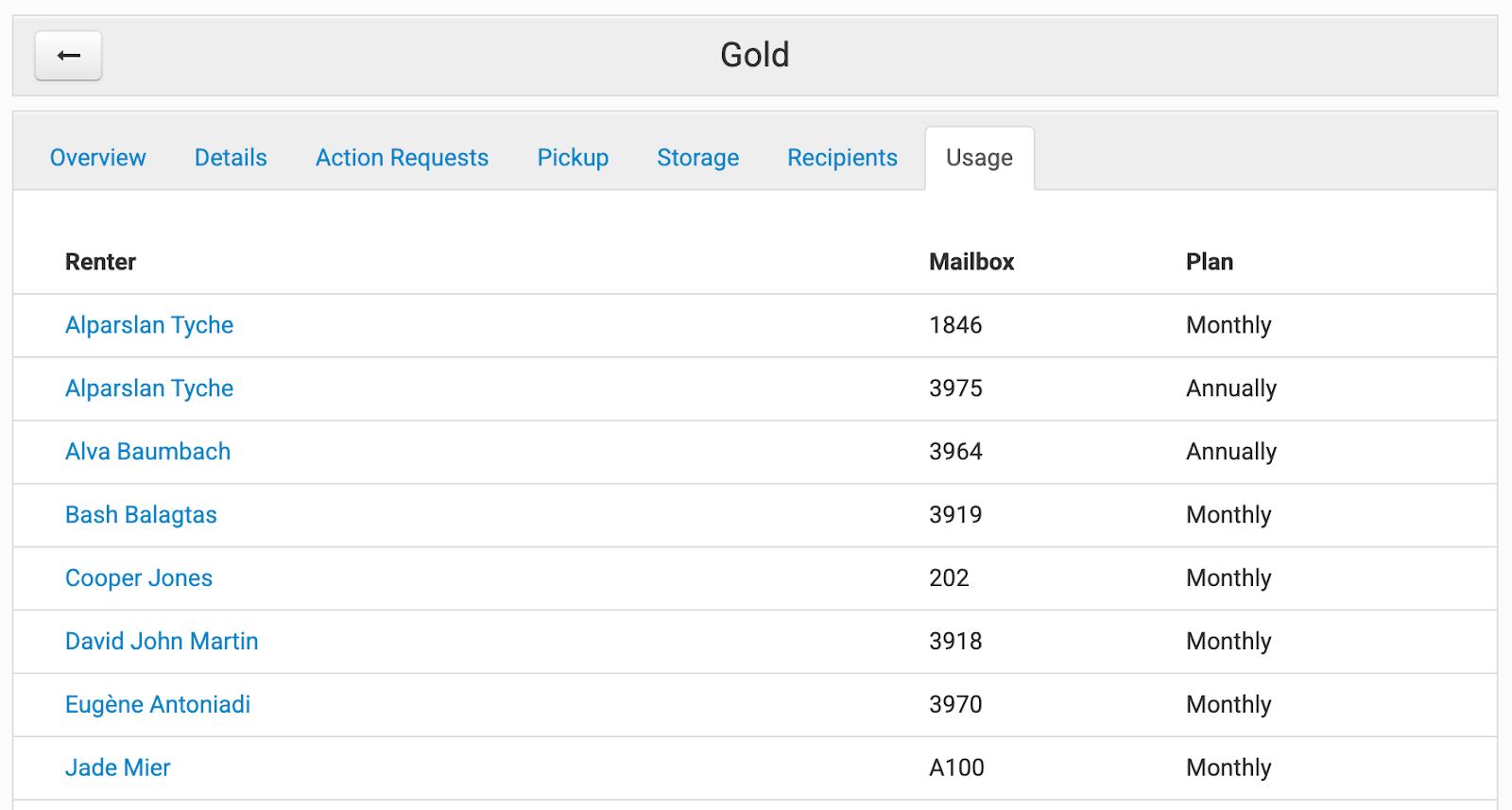
Step 3: Navigate to the Usage tab, which will display a list of customers enrolled in this plan. Locate the customer's name from the list and click on it to view their details.
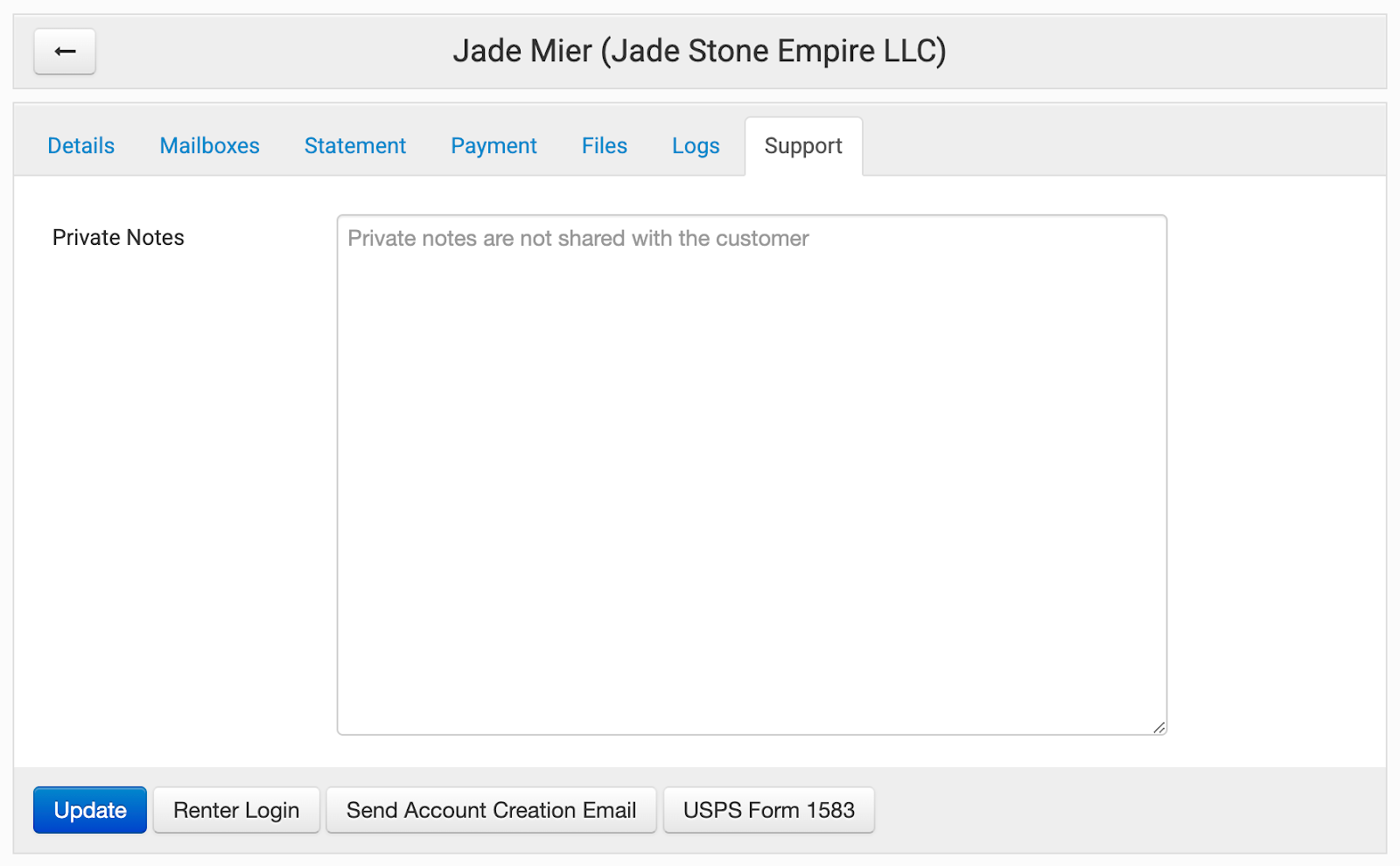
Step 4: After accessing the customer's details, navigate to the Support tab. At the bottom of the page, click the button labeled USPS Form 1583.
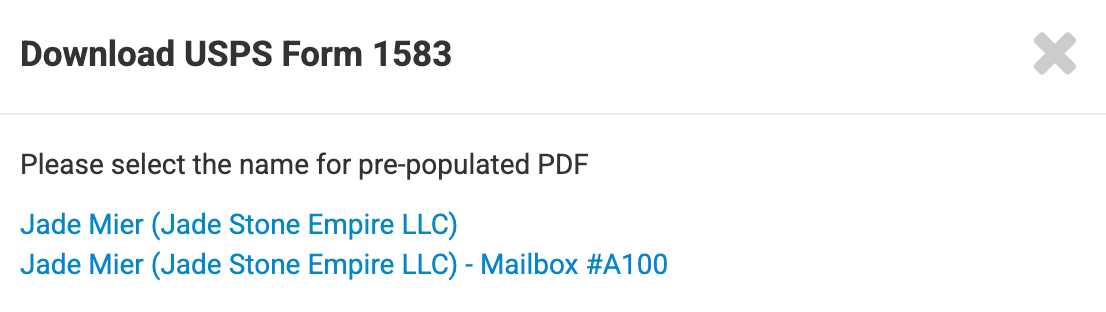
Step 5: A pop-up box will appear with download links for the file. Click the file name with the customer's name and Mailbox# to download the pre-populated USPS 1583.
Step 6: Once the form is downloaded, the partner needs to print the form and have the customer fill it out.
Step 7: Partner must sign section 14 of the form, scan the file as well as scan 2 valid IDs and upload the documents to the partner portal. To upload files, please click this link: Uploading Documents for Unverified Cus