
1. Handling Mail for Inactive or Closed Accounts
When a mailbox customer stops responding to notifications, accumulates unprocessed physical mail, or appears inactive, partner locations should avoid holding or processing their mail indefinitely.
How to check:
Verify Status in Portal: Check the customer's account status in the Partner Portal under Customer. Search by the customer's name or mailbox number, or use the portal filters. You can also contact Partner Support to confirm whether an account is active.
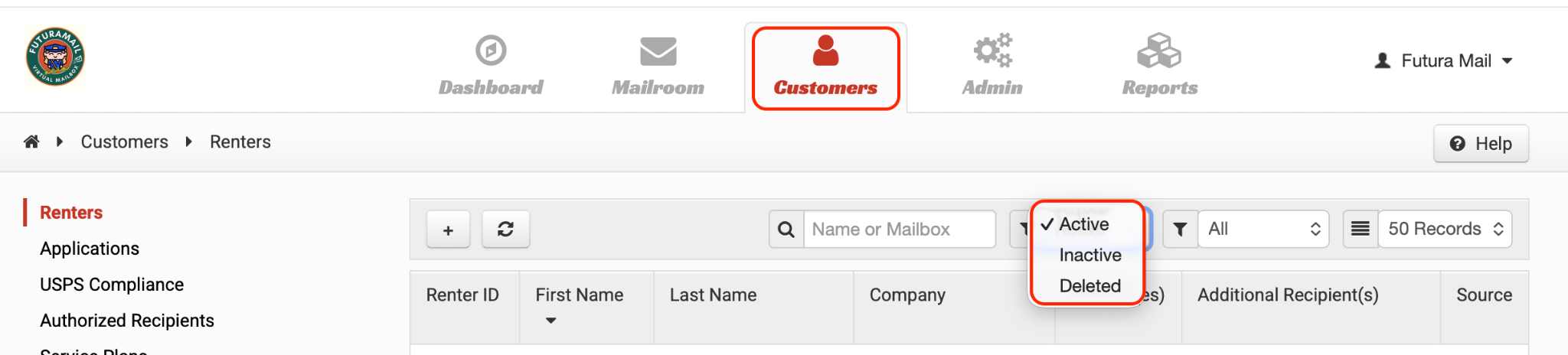
Refuse New Inbound Deliveries: Once an account is confirmed as Inactive or Closed, immediately refuse all newly arriving physical mail addressed to that individual or mailbox number.
Return Accumulated Items to Sender (RTS): For any mail items stored at your center, mark them as Return to Sender (RTS) and hand them back to the delivery carrier (e.g., USPS). Partner locations are not obligated to hold mail once an account is closed.
2. Resolving Items Marked "Picked Up" by Mistake
Accidentally marking mail as “Picked Up” marks a transaction as completed and finalized in the system.
Key System Limitation
The "Picked Up" status is permanent. It cannot be undone, reversed, or reset in the Partner Portal or by support.
What Mail Center Staff can do from your end:
If mail remains physically at your location but has already been tagged as "Picked Up":
Notify your Customer: Send an email to the customer explaining that the item was marked as "Picked Up" due to an administrative error, and confirm that their physical mail remains secure at your location.
Re-Upload as New Mail: Re-scan and upload the physical item into the customer’s mailbox as a brand-new mail item.
Restore Action Controls: Once re-uploaded, the item will reappear in the customer's active inbox, allowing them to submit their desired handling request (e.g., Open & Scan, Forward, Shred, or scheduled in-person pickup).