When managing mail items in the Pending Assignment tab, you may occasionally encounter duplicate scans or items that have already been physically processed and mailed out.
Depending on your situation, you have two options:
Permanently Discard: Use this if the mail item is an unwanted duplicate that needs to be deleted from the portal.
Assign and Mark as Forwarded: Use this if the physical item was forwarded or needs to be properly logged under the customer’s account history as completed.
Important Notice: Discarding is Permanent
Warning: Once a mail item is discarded, it is permanently removed from the system. It cannot be recovered, reassigned, or viewed in the customer’s portal. Please verify the mail item details before selecting this option.
Option 1: Permanently Delete / Discard a Mail Item
Follow these steps if you have an unassigned duplicate or error item that has already been dispatched and needs to be completely removed:
Navigate to the Pending Assignment tab in your dashboard.
Locate the specific mail item you wish to remove.
Click the Assign button next to the item.

Then select Discard.

Confirm the prompt to permanently remove the mail item from the system.
Option 2: Assign and Mark as "Forward Completed"
If the item is not a mistake and needs to be officially recorded as forwarded for customer visibility and record-keeping, do not discard it. Instead, assign it to the customer’s mailbox first and update its status.
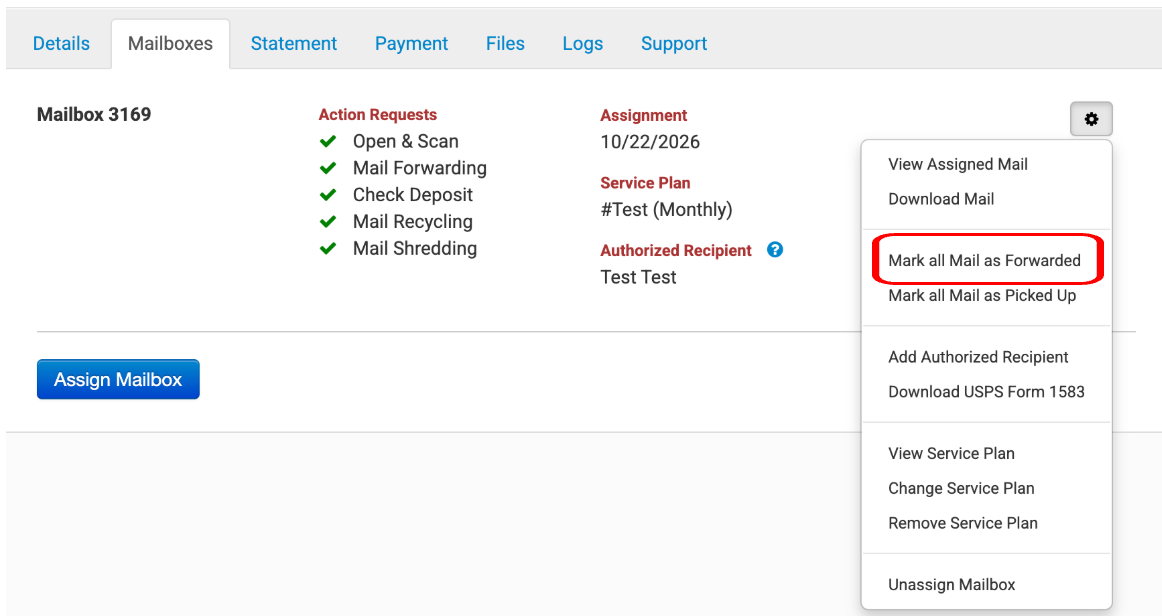
Marking All Items as Forwarded for a Customer
To mark all of a customer's mail items as Forward Completed in bulk:
Navigate to the Customers tab.
Search for and click on the customer’s name.
Select the Mailboxes tab.
Click the gear (wheel) icon to view mailbox management options.
Select "Mark All Mail Items as Forwarded".